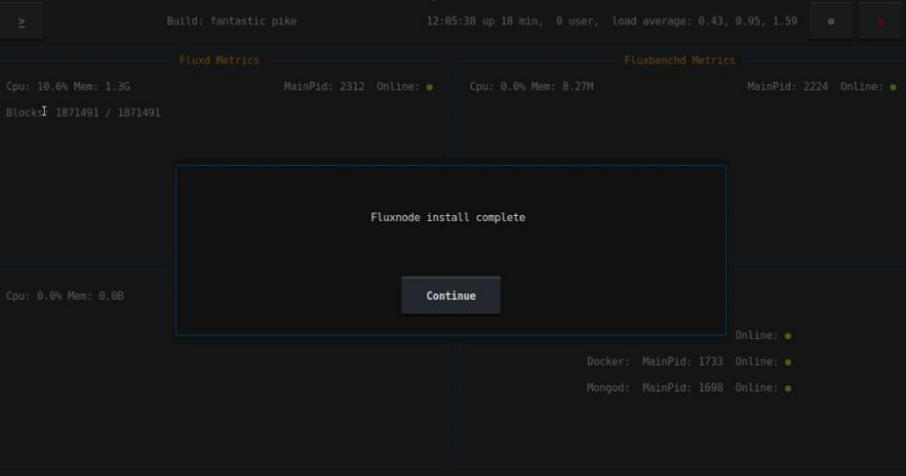
8. Finalizing the Configuration
After applying your settings, return to the VM console to confirm that Arcane OS has transitioned into its operational phase.
Metrics Dashboard
On boot, the Metrics Dashboard provides real‑time insights into your node’s health:
| Metric | Description |
|---|---|
| Node Uptime | Total time since last reboot |
| Service Health | Status indicators for core services (fluxd, fluxbenchd, syncthing) |
| Daemon Sync State | Progress of blockchain synchronization |
ℹ️ When running multiple nodes on a private LAN, Arcane OS will attempt to peer‑sync from any fully synced local node (within maintenance windows), reducing reliance on CDN bootstrap.
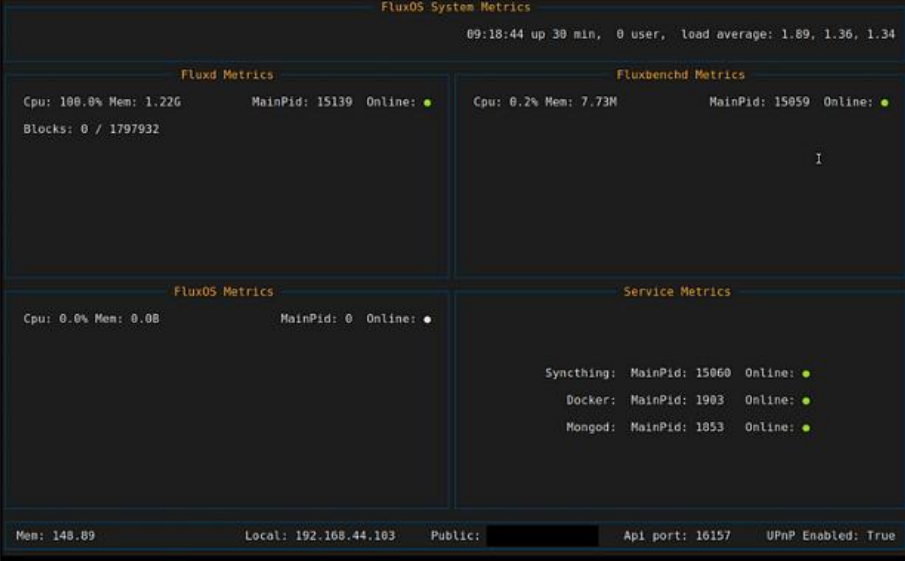
Note: Future releases will expand this dashboard with additional metrics and diagnostics.
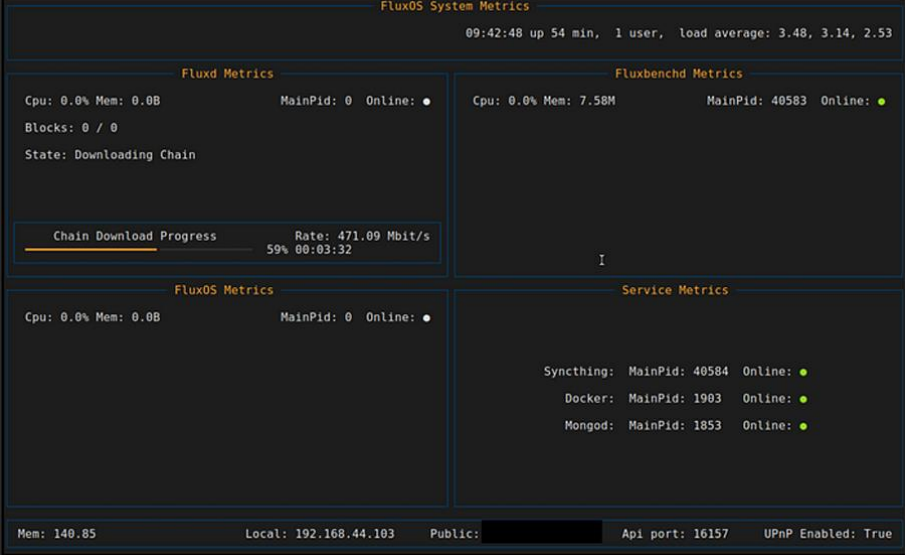
Chain Downloading
Although your configuration is complete, the Flux blockchain must still download and validate:
- Background Services
- syncthing and fluxbenchd will start automatically.
- fluxd may restart several times as it catches up.
- Offline State
- FluxOS remains “offline” in the dashboard until fluxd is fully synced.
- Completion Indicator
- When synchronization finishes, a “Shell” button appears in the top‑left corner of the dashboard.
⏳ This process can take anywhere from a few minutes to over an hour, depending on hardware performance and network bandwidth.
Starting Your FluxNode
With the blockchain synced and services running:
- Activate Your FluxNode
- In your ZelCore or SSP Wallet, navigate to FluxNode and click Start.
- Verify Operation
- Confirm your node’s status changes to “Running” in the wallet and dashboard.
🎉 Congratulations! Your FluxNode is now fully operational on Arcane OS, securing the network and earning rewards.