9. Accessing the System
Once your FluxNode is operational, there are two primary ways to access its command interfaces: the built‑in Shell Console (via the web UI) and SSH (if you enabled it during setup). You can also reconfigure your FluxNode settings at any time.
Shell Console
Use the Shell Console for limited, in‑browser access to your node:
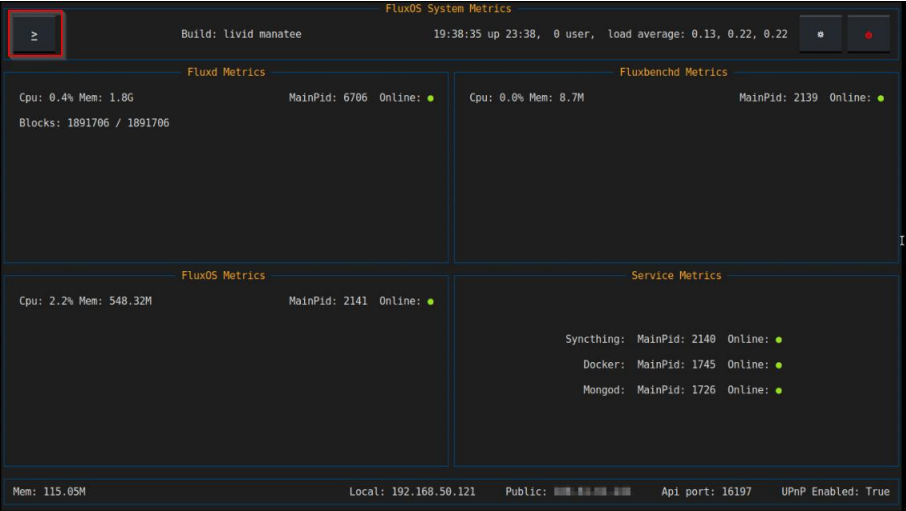
- Open the Shell
- Click the Shell button in the top‑left corner of the Metrics Dashboard.
- Authenticate
| Credential | Value |
|---|---|
| Username | console |
| Password | The password you set at install |
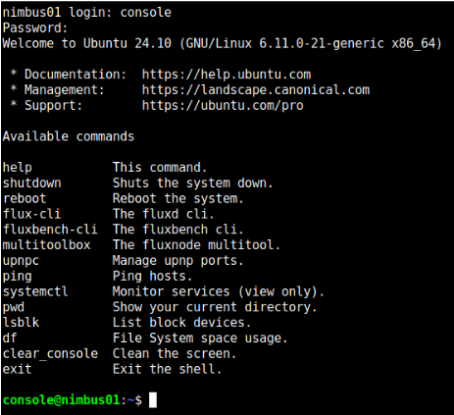
- Available Commands
After login, you’ll see a list of permitted commands (e.g.,fluxd status,syncthing status,reconfigure). These cover all routine maintenance tasks without exposing full root access.
SSH Access (Optional)
If you enabled SSH during configuration, you can connect externally using your operator account:
| Credential | Value |
|---|---|
| Username | operator |
| Auth Method | Private key (operator_key file) |
ssh -i operator_key operator@<node-ip>
🔐 SSH access uses the limited‑privilege
operatoruser to ensure secure maintenance.
Reconfigure Your FluxNode
Want to update notification settings, SSH keys, or blocklists? Reconfigure on the fly:
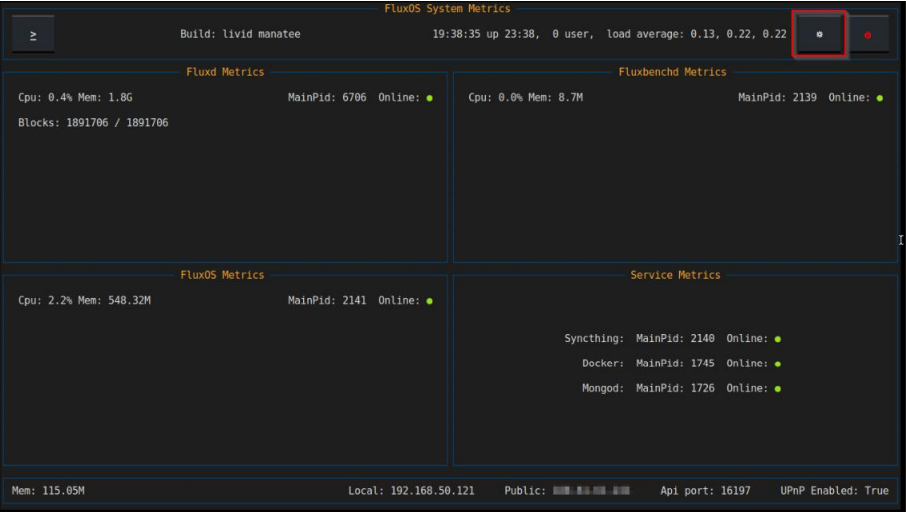
- Click the Settings (gear) icon in the web UI.
- Select Reconfigure FluxNode.
- Flux services will pause (except daemon syncing) while you adjust settings.
- Apply changes and allow services to resume.
⚠️ Reconfiguration is safe but will interrupt most FluxOS services temporarily.
You're All Set!
Your FluxNode is now fully installed, configured, and integrated with Arcane OS. You can:
- 💬 Join the Flux Discord for community support
- 🛠️ Troubleshooting Section (coming soon)
Enjoy supporting the FluxCloud network!