Palworld
This guide walks you through the process of deploying, managing, and connecting to a Palworld Game Server using FluxCloud. Whether you’re setting up a new server or maintaining an existing one, this page provides step-by-step instructions and key details for a seamless experience.
The FluxCloud Palworld template is built on the thijsvanloef/palworld-server-docker image, which includes built-in RCON support, scheduled backups, and automatic server updates.
For more information on Palworld Servers visit: https://tech.palworldgame.com/. For the server image documentation, see: https://github.com/thijsvanloef/palworld-server-docker.
🚀 Dedicated Palworld hosting portal: Palworld on Flux now has its own purpose-built site at palworld.runonflux.com. It gives you a streamlined checkout (pay by card or subscription via Stripe, or with FLUX crypto) and a dedicated management dashboard — live CPU/RAM/disk stats, an in-browser terminal and file manager, one-click backups, billing and renewal controls, and a global server-location map. Clicking the Palworld tile in the FluxCloud Marketplace now redirects you there automatically. The Marketplace walkthrough below still applies — the configuration options are the same, and your server runs as a standard Flux app you can also manage from cloud.runonflux.com.
How To Install a Palworld Server
Steps
- Access FluxCloud
- Visit palworld.runonflux.com — the dedicated Palworld hosting portal — and sign in or create an account. (Going through cloud.runonflux.com works too: clicking the Palworld tile in the Marketplace redirects you there automatically.)
- Find the Palworld Server
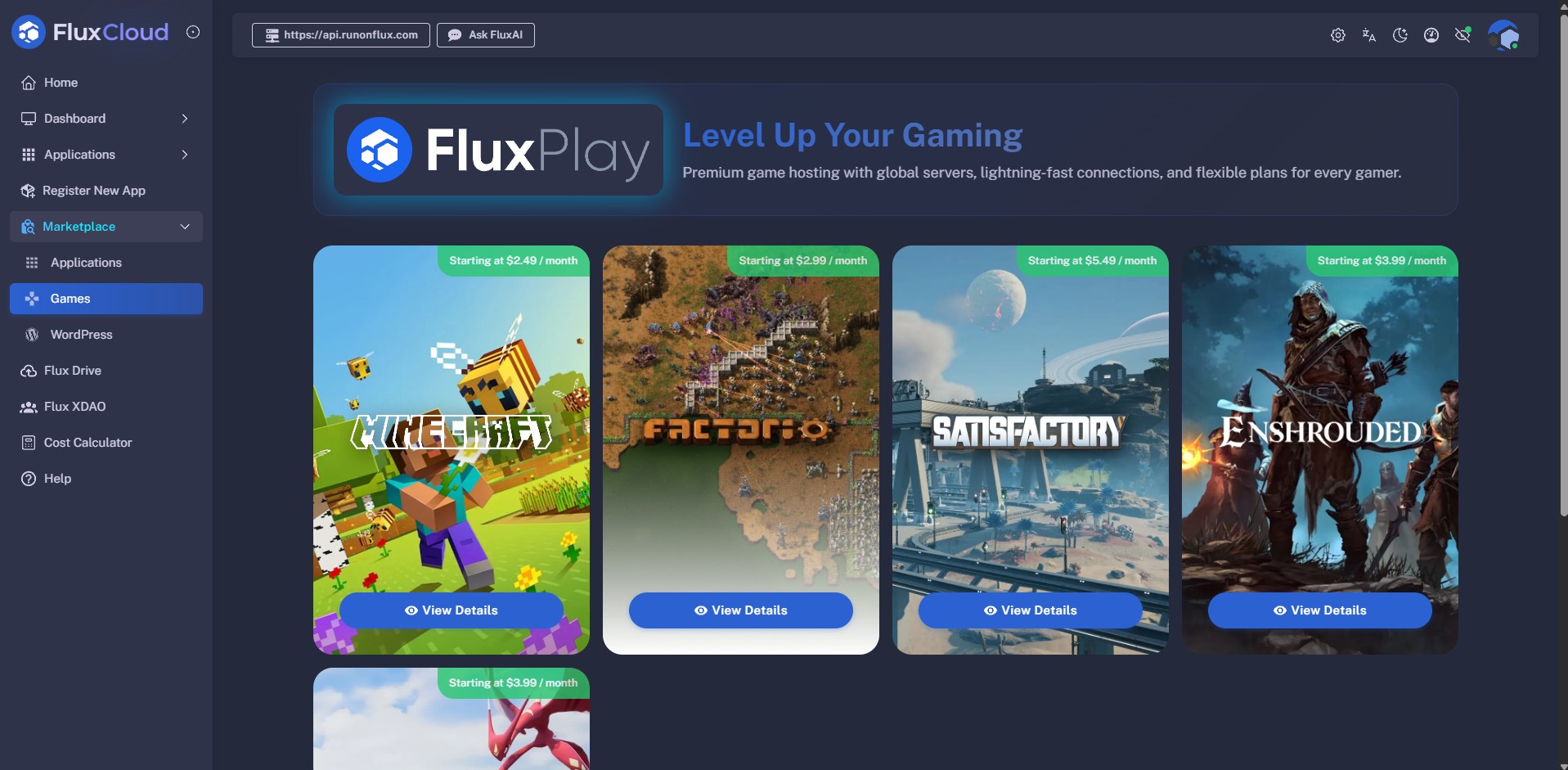
- Navigate to the Marketplace → Games tab, then locate the Palworld tile and click View Details.
- Select Server Configuration
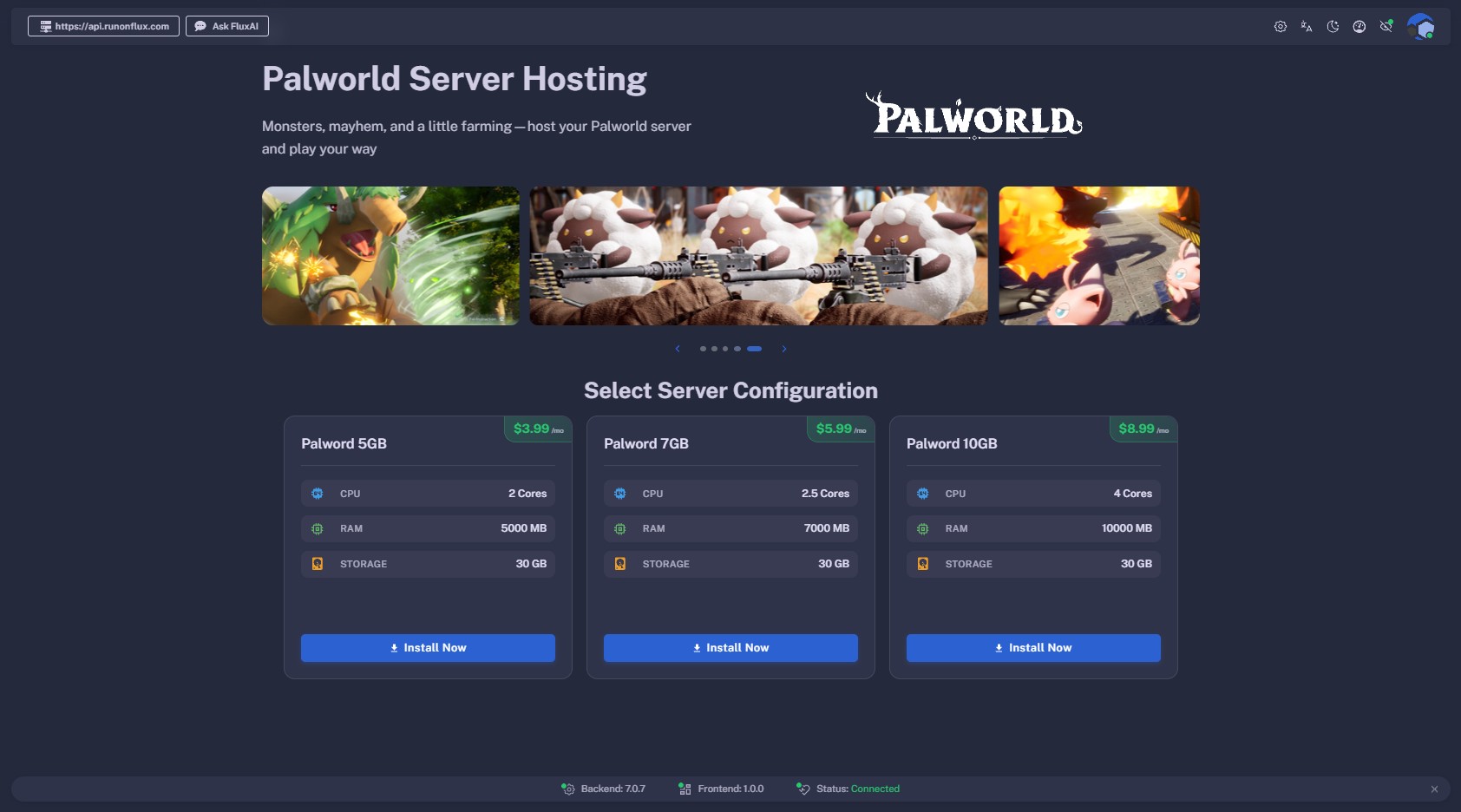
- Choose your preferred configuration, and click Install Now to continue.
- Choose Subscription
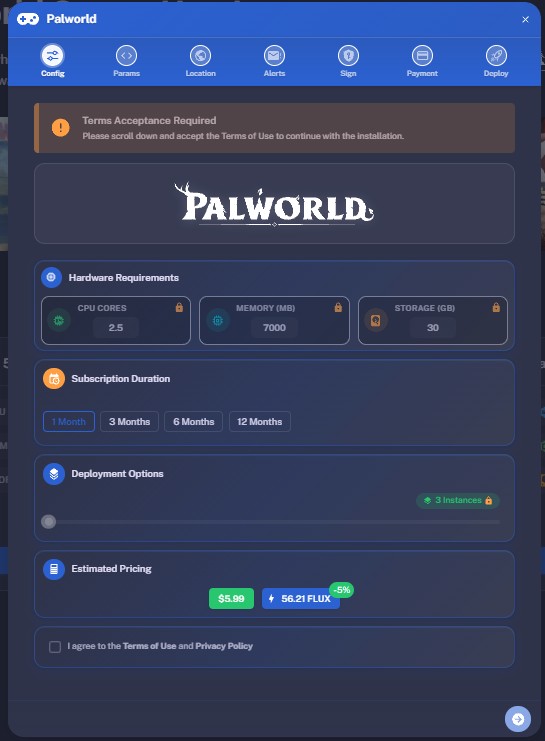
- Select your desired subscription duration.
- Agree to the Terms of Use and Privacy Policy, and click the blue Continue arrow at the bottom.
- Deployment Location
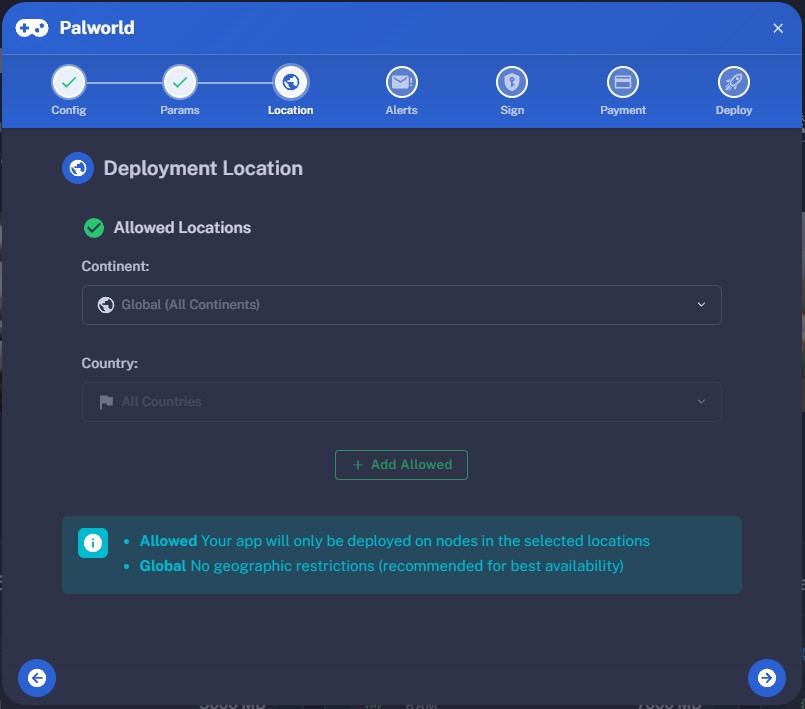
- Configure whether you want your Palworld server to deploy in specific geographic regions:
- Global (Recommended): No geographic restrictions for best availability.
- Custom: Restrict by continent or country.
- Click the blue Continue arrow to proceed.
- Email Notifications
- Optionally enter your email address to receive notifications about your game server, including:
- When your application finishes launching.
- When the primary server changes.
- When your app expiration date is approaching.
- Launching the Application
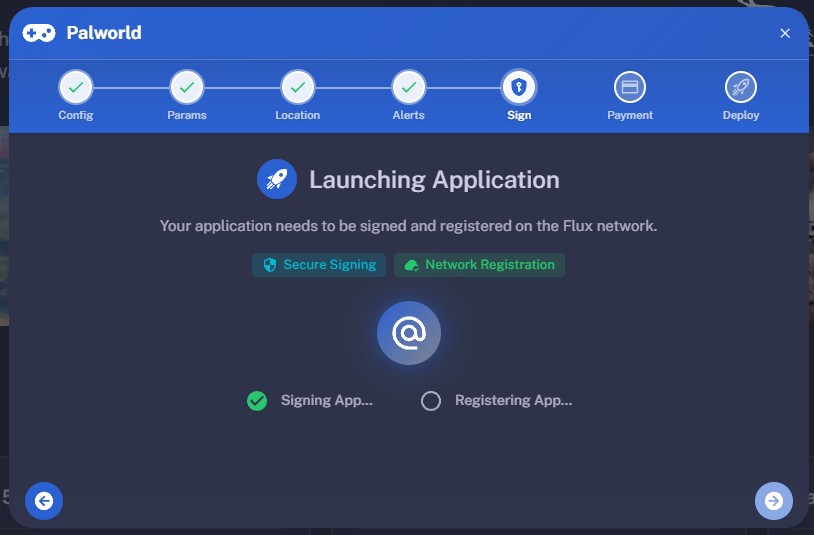
- Your application must be signed and registered on the Flux network.
- Click Sign and Register.
- Sign the message using the pop-up.
- If you logged in via Google or Email, this step is completed automatically.
- Complete Payment
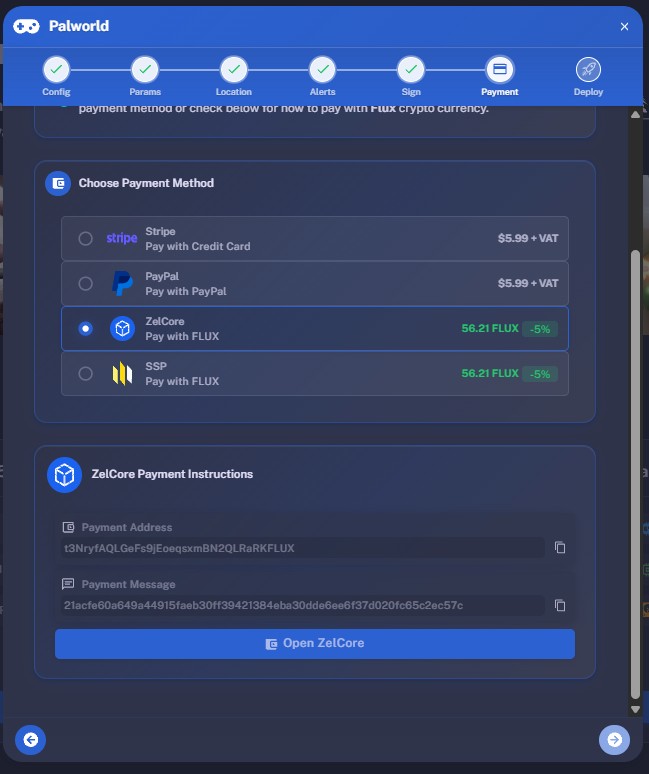
- Choose your payment method:
- Fiat: Stripe or PayPal
- Crypto: FLUX coin (5% discount)
- Payment is monitored automatically. Once confirmed, your application will be deployed, and a blue Manage button will appear—directing you to your application’s management panel.
⚠️ Important: FLUX Payments
FLUX payments are only accepted via the FLUX Mainnet, not through any of our EVM tokens.
We ALSO strongly recommend not sending FLUX payments from exchanges, as:
- Transactions or withdrawals may not complete within the required 30-minute window.
- Many exchanges do not support adding a MEMO, which is required for proper payment processing.
Finding our your IP of the Game Server
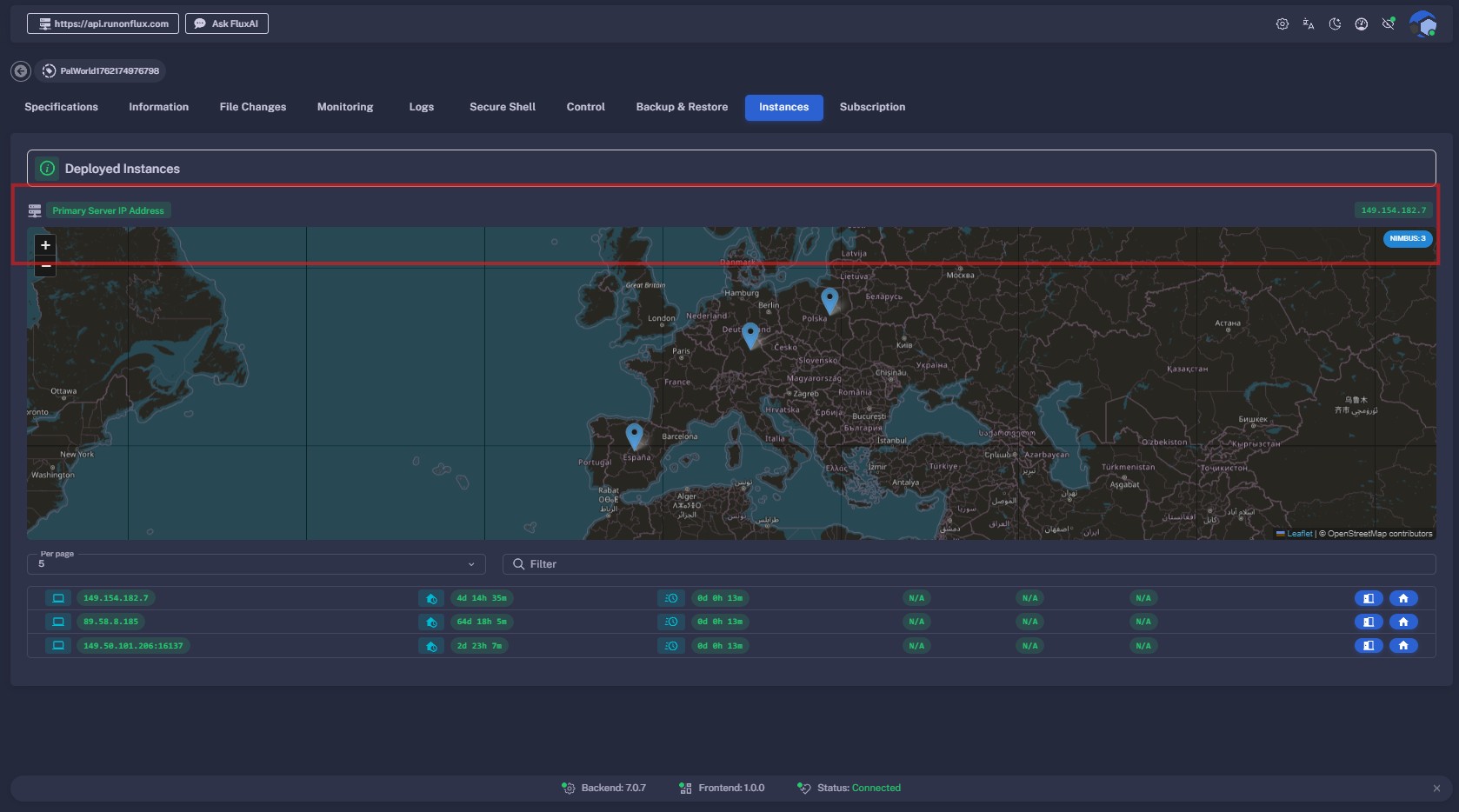
Flux runs on a decentralized network, meaning your application is deployed across three instances.
For game servers, a Primary/Standby setup is used — your game runs on the primary instance, while others are on standby for redundancy.
To find your server’s primary IP address:
- Visit cloud.runonflux.com and log in.
- Go to Applications → Management.
- Click the Settings icon on your Palworld Server.
- Open the Instances tab.
- The Primary IP address is shown here.
- You can also view geolocation details for all instances.
To connect to your server:
- In Palworld, go to Join Multiplayer Game.
- Enter your primary IP followed by
:8211. - Example:
123.45.67.89:8211 - Leave the password field empty unless you have configured one.
.png)
Connecting via Domain Instead of IP
Every FluxCloud Marketplace game server is also reachable through its application domain. Flux's load balancer forwards traffic over DNS and is already configured with the correct game port, so you keep a stable address even when the primary instance changes due to failover.
-
Find your app domain under Applications → Management → Information.
-
Use it in the Palworld connection field in place of the IP. The game port is already baked into the domain's DNS routing, so you do not need to append
:8211:your-app-domain.app.runonflux.io
Using the domain means you never have to update the address your group uses when the primary switches.
Frequently Asked Questions
How can I update my game server to the latest version?
Your Palworld server automatically checks for updates during startup and at regular intervals. If you’d like to update immediately, you can do so from your application’s management panel.
Simply open the Applications → Management section on FluxCloud, select your Palworld server, and go to the Control tab. From there, choose Local and click Restart Application. This will redeploy your server with the latest available version.
What happens if the primary server goes down?
If your current primary server becomes unavailable or experiences downtime, one of the standby instances automatically takes over as the new primary after a short delay. All your game data remains intact, so you can continue right where you left off once the switch is complete. You can check which instance is currently the primary from your application’s management panel under the Instances tab.
💡 Tip: If you connect via the app domain (
your-app-domain.app.runonflux.io, no port suffix) instead of the raw IP, your client will keep reaching the correct primary automatically after a failover.
What ports does Palworld use?
The Palworld dedicated server uses UDP port 8211 for gameplay traffic, UDP port 27015 for Steam server queries, and TCP port 25575 for RCON. FluxCloud exposes all of these automatically. When connecting by IP you must specify port 8211 (e.g. 1.2.3.4:8211); when connecting via the app domain the port is resolved by DNS and you do not need to append it.
Can I change my game server settings?
Yes, you can customize your Palworld server settings directly from the FluxCloud management panel.
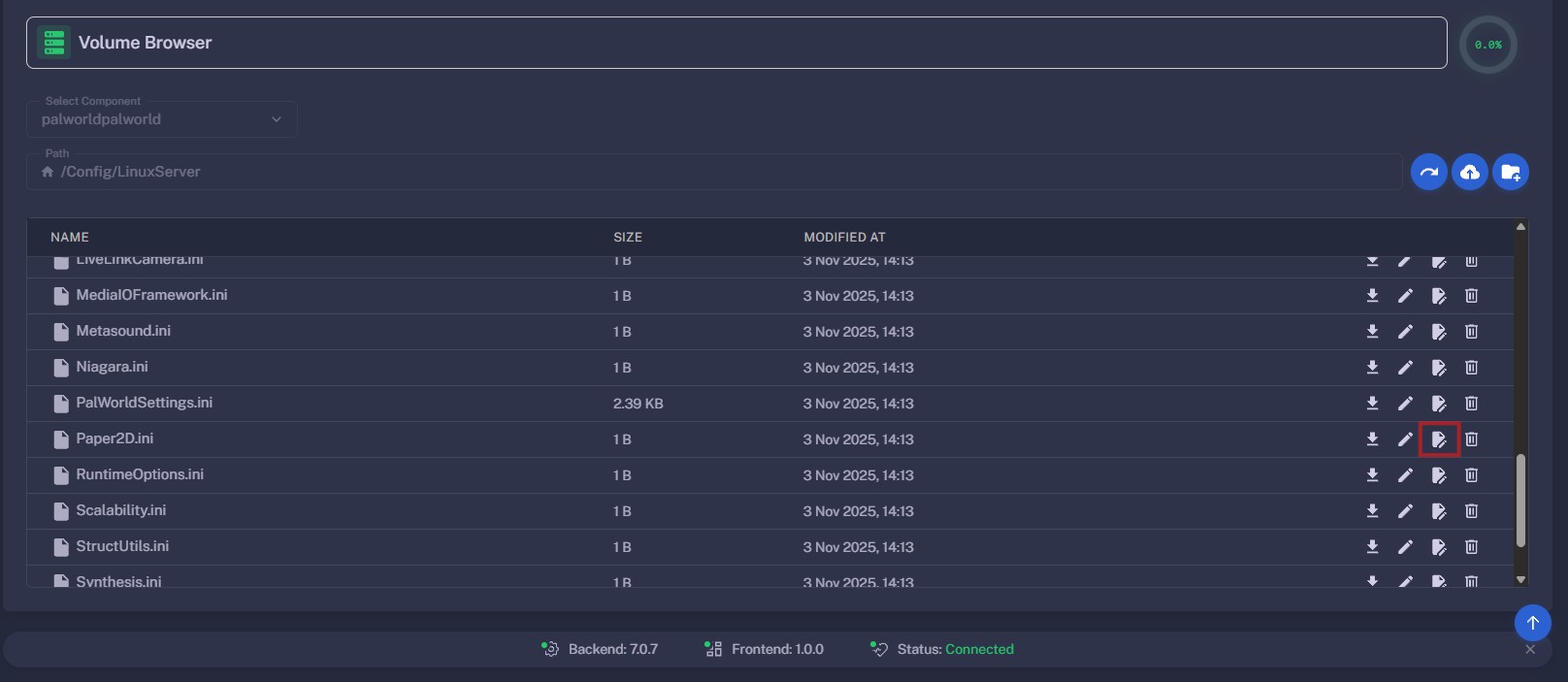
Go to Applications → Management, select the settings icon to manage your Palworld server, and open the Secure Shell tab. Scroll down to the Volume Browser section.
.png)
Locate the PalWorldSettings.ini file under Config → Linux Server → Palworld Settings, and click Edit to make changes directly within the Volume Browser. You can adjust parameters such as the server name, player limit, and password by editing the values within the quotation marks in this file.
What if a new version of the game server is released and my server doesn't update automatically?
Your server normally updates itself automatically during startup or periodic checks. However, if it hasn’t updated yet, a simple restart from the management panel will trigger the update and ensure you’re running the latest version.
Can I change my server's hardware specifications after deployment?
Yes. At any time — if you feel the hardware specifications no longer reflect your needs — you can adjust them from Applications → Management → Update App Specifications on the Components tab. Your world saves, settings, and data are preserved across the change, and you are billed according to the new specifications.