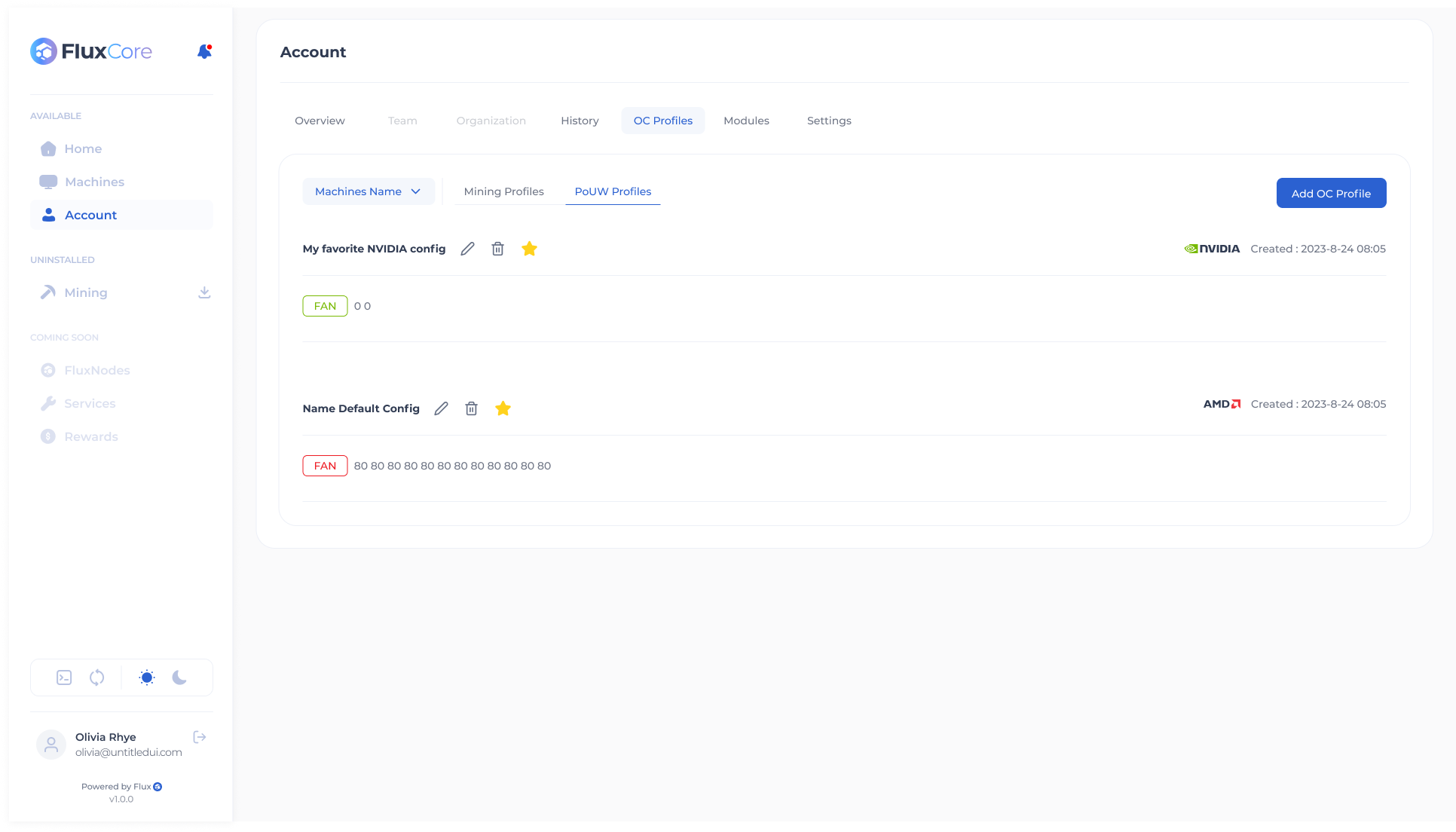
PoUW Profiles
Creating an OC Profile
If no OC Profiles have been created, you will see a prompt to create your first one.
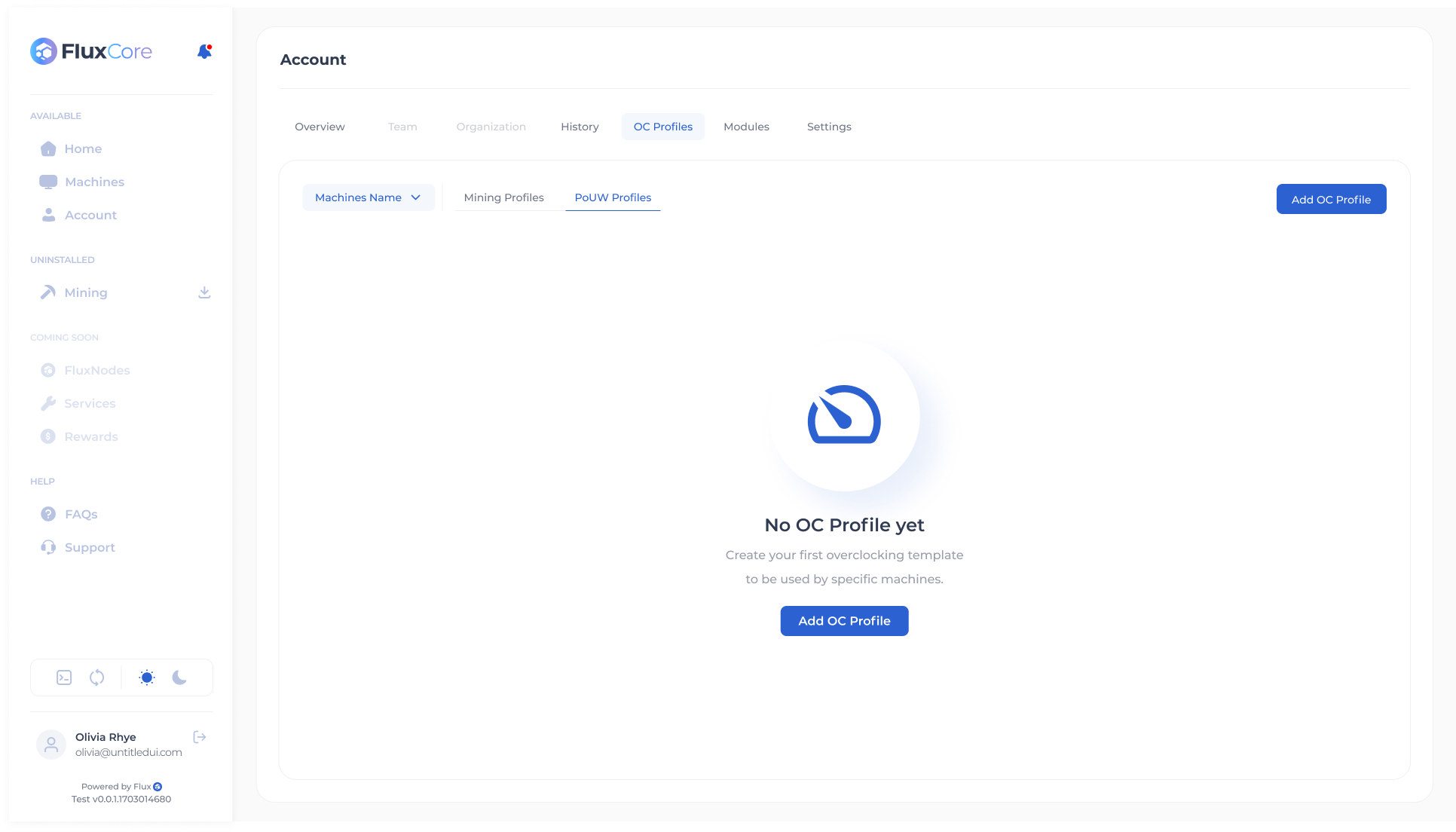
- Click the Add OC Profile button in the middle of the screen.
- A pop-up will appear, detecting if your machine has NVIDIA or AMD GPUs.
- for PoUW Profiles you will only have access to specify the following settings
- Configuration Name
- Fan Speed (among others, depending on your GPU)

Inputting Values for Fan Speed
You can enter a single value for all GPUs or different values for each GPU, separated by spaces.
- Example for all GPUs: 150
- Example for individual GPUs: 0 100 0 80 (GPU0 = none, GPU1 = 100, GPU2 = none, GPU3 = 80)
- Setting the fan speed to 0 will enable automatic adjustment, where the fan speed changes based on load and heat.
Default Configuration Toggle
The default configuration is applied when no other overclocking profile is selected at lease start. Only one default configuration is allowed per machine.
Note: Only the machine owner can set a default configuration. If you imported the machine via its hash and password, you do not have ownership rights.
Saving and Managing OC Profiles
After entering your desired settings, click the Save button. The profile will appear in your OC profile list, with its values visible. You can delete or edit OC profiles later.